Migrating from Bing Search APIs to Azure OpenAI Agent with Grounding Bing Search
Bing Search APIs were retired on August 11, 2025. Any app still calling Bing Web Search or Custom Search directly stopped working that day, and there’s no fallback. Microsoft’s replacement path is Grounding with Bing Search, a tool you attach to an agent in Azure AI Agent Service.
A quick note on timing. Azure AI Foundry was renamed Microsoft Foundry in January 2026, and the setup below reflects what Microsoft now calls Foundry Agent Service (classic).
Classic is deprecated and retires March 31, 2027, in favor of the GA Microsoft Foundry Agent Service. Grounding with Bing Search itself hasn’t changed; it still works the way I describe here.
If you’re starting a new project today, check the current agent service docs before you copy the package versions below.
What you gain by switching to Grounding with Bing Search
- Results inside the response: you read the agent’s answer directly. No separate JSON payload to fetch and parse first.
- Grounded answers: the model anchors responses in current web results, which helps with hallucinations on time-sensitive questions.
- Separate metering, same subscription: Grounding with Bing Search and your Azure OpenAI usage land in the same Azure subscription. Grounding with Bing Search bills per transaction, $14 per 1,000 as of August 2026, on its own meter, separate from token pricing.
Prerequisites
Ensure you have the following before beginning:
- Active Azure subscription
- Azure OpenAI services access
- Visual Studio or Visual Studio Code with .NET 8.0 or later (current LTS is .NET 10; .NET 9 reaches end of support on November 10, 2026)
- Working knowledge of C# and Azure services
Step 1: Setting Up Azure AI Foundry
Create Your Azure AI Foundry
- Go to the Azure Portal
- Search for “Azure AI Foundry” and select it
- Click “Create” to start setting up your hub
- Configure the following settings:
- Subscription: your Azure subscription
- Resource group: create new or select existing
- Region: a region that supports Azure OpenAI, such as East US or West Europe
- Default project name: something descriptive, like “MyAIAgentProject”
- Click “Review + create”, then “Create”
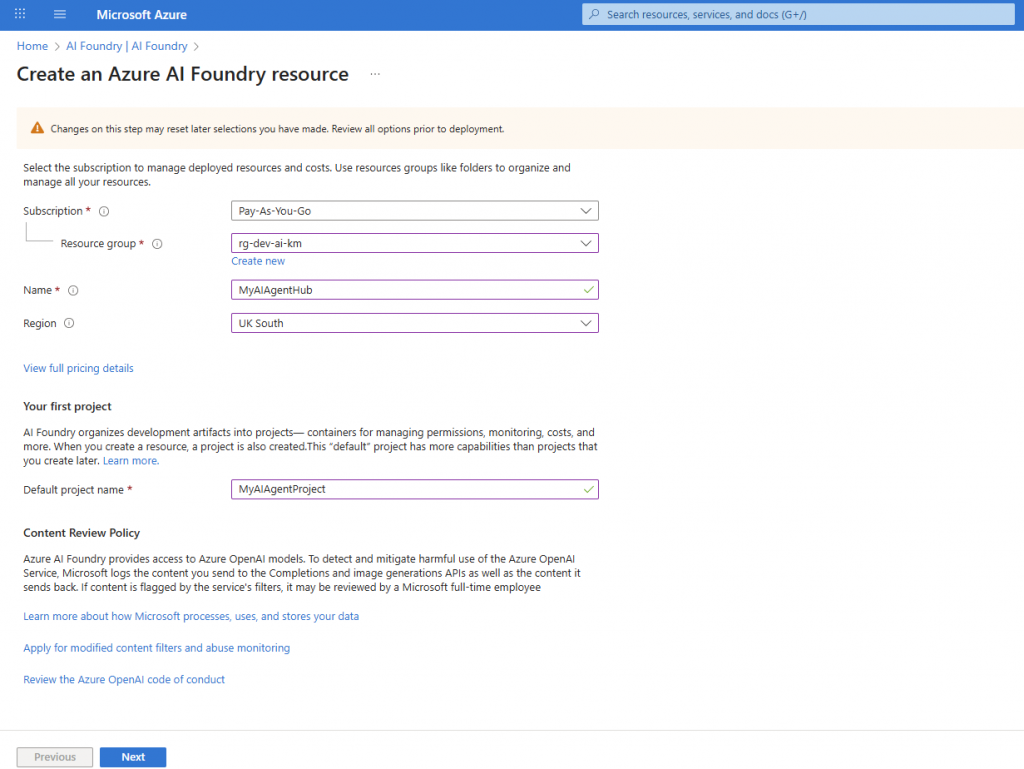
Step 2: Setting Up Azure OpenAI Resources
Deploy Required Models
- In your AI Foundry project, go to “Models + endpoints”
- Click “Deploy model” and pick GPT-4 or GPT-4o (or another supported model) for your main language model. As of the Microsoft Learn model-support notes updated July 2026, Grounding with Bing Search doesn’t work with gpt-4o-mini (2024-07-18) or the gpt-5 model family. Check the current list before you deploy.
- Note the deployment name. You’ll need it in your code.
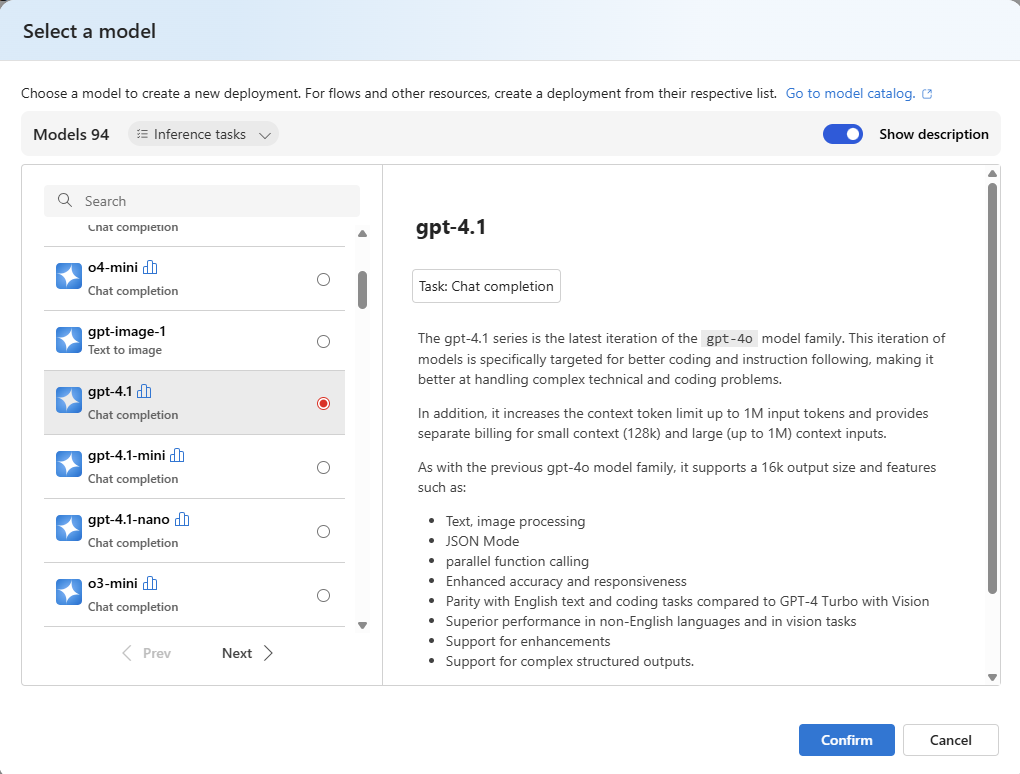
Create a Grounding with Bing Search Resource
- Go to the Azure Portal
- Create a new “Grounding with Bing Search” resource
- Configure the resource:
- Subscription: same as your AI Foundry project
- Resource group: same as your AI Foundry project
- Resource name: something descriptive, like “MyBingGroundingSearch”
- Region: Global
- Pricing tier: pick based on expected transaction volume. Grounding with Bing Search costs $14 per 1,000 transactions as of August 2026, capped at 150 per second and 1 million per day.
- Click “Review + create”, then “Create”
- Note the resource details. You’ll need them to connect it to your agent.
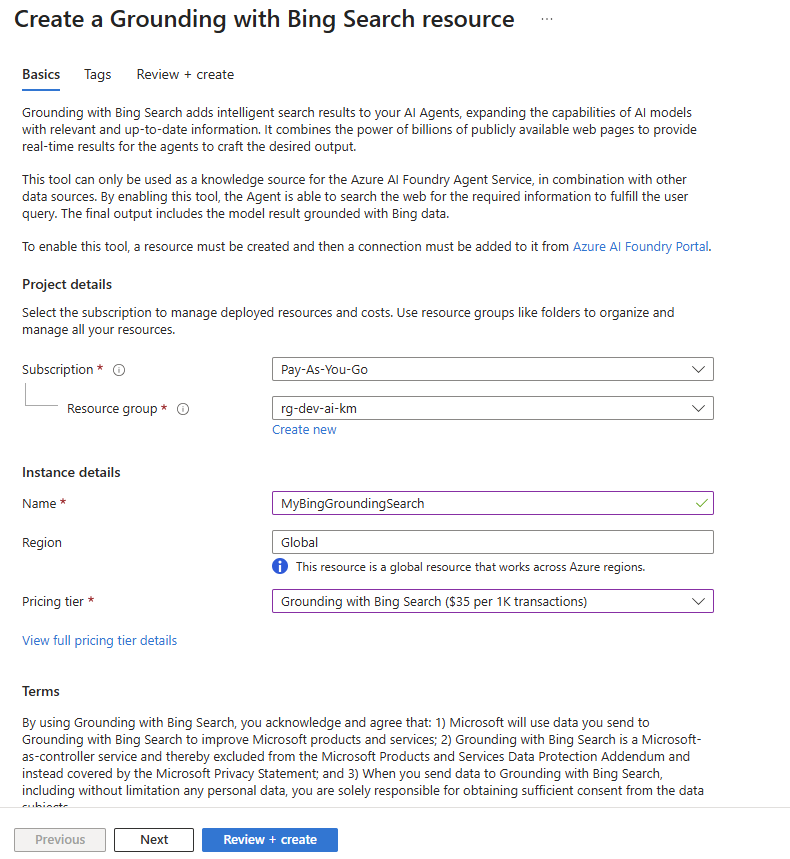
Connect the resource to your AI Foundry project
- In your AI Foundry project, go to “Connected resources”
- Click “Add connection”
- Select your Grounding with Bing Search resource
This connection is what lets your agent call Bing.
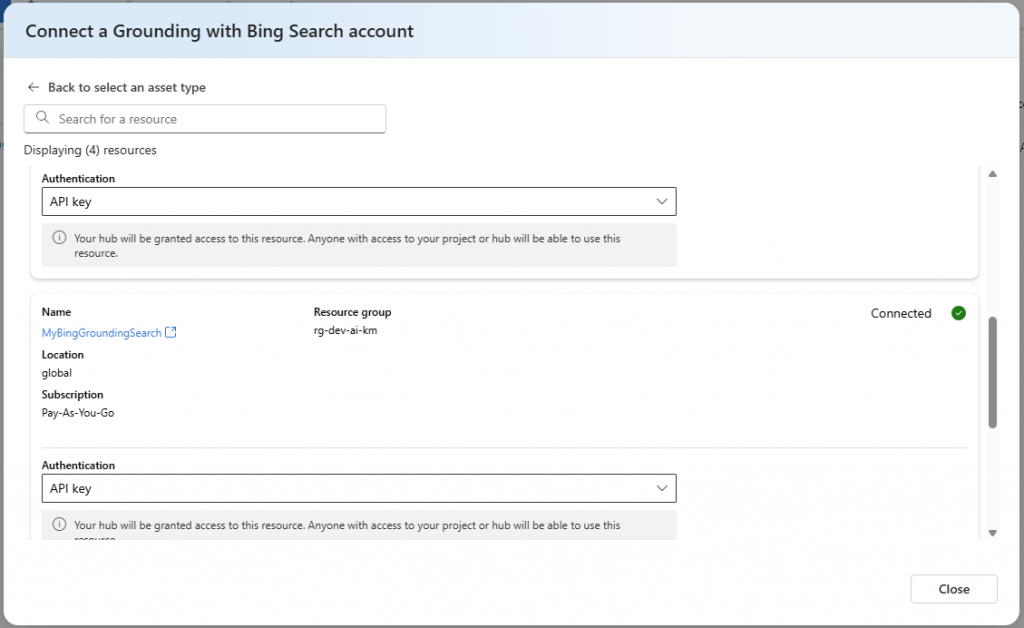
Step 3: .NET Project Setup
Install Required NuGet Packages
Create a new .NET console app, or add these to an existing one. I used .NET 9.0 and the current Azure package versions as of July 2025:
<PackageReference Include="Azure.AI.Agents.Persistent" Version="1.1.0-beta.3" />
<PackageReference Include="Azure.AI.Projects" Version="1.0.0-beta.9" />
<PackageReference Include="Microsoft.Extensions.Configuration" Version="9.0.7" />
<PackageReference Include="Microsoft.Extensions.Configuration.Json" Version="9.0.7" />
<PackageReference Include="Microsoft.Extensions.DependencyInjection" Version="9.0.7" />
<PackageReference Include="Microsoft.Extensions.Hosting" Version="9.0.7" />
<PackageReference Include="Microsoft.Extensions.Logging" Version="9.0.7" />
<PackageReference Include="Microsoft.Extensions.Logging.Console" Version="9.0.7" />As of August 17, 2026, current versions are Azure.AI.Agents.Persistent 1.2.0-beta.9, Azure.AI.Projects 2.0.1 (now stable, out of beta), and Microsoft.Extensions.* 10.0.x. I haven’t tested this code against those versions. The API surface may have moved since the 1.0.0-beta.9 client used here.
Configuration Setup
Create an appsettings.json file:
{
  "AzureAI": {
    "ConnectionString": "your-azure-ai-project-connection-string"
  },
  "AzureOpenAI": {
    "Endpoint": "https://your-resource-name.openai.azure.com",
    "ApiKey": "your-api-key",
    "DeploymentName": "gpt-4o"
  },
  "BingGrounding": {
    "ConnectionName": "your-bing-connection-name"
  }
}Step 4: Implementation
Basic Agent Setup
Here’s an Azure AI Agent with Bing Search grounding attached:
using System.ClientModel;
using Azure.AI.Agents.Persistent;
using Azure.AI.Projects;
using Azure.Identity;
using Microsoft.Extensions.Configuration;
using Microsoft.Extensions.Logging;
using Microsoft.SemanticKernel;

namespace BingGroundingAgent;

public sealed class BingGroundingAgent
{
    private readonly IConfiguration _configuration;
    private readonly ILogger<BingGroundingAgent> _logger;
    private PersistentAgent? _agent;
    private PersistentAgentsClient? _persistentClient;
    private Connections? _connections;
    private AIProjectClient? _projectClient;

    public BingGroundingAgent(IConfiguration configuration, ILogger<BingGroundingAgent> logger)
    {
        _configuration = configuration ?? throw new ArgumentNullException(nameof(configuration));
        _logger = logger ?? throw new ArgumentNullException(nameof(logger));
    }

    public async Task InitializeAsync()
    {
        try
        {
            // Validate configuration
            var connectionString =
                _configuration["AzureAI:ConnectionString"]
                ?? throw new InvalidOperationException(
                    "Azure AI connection string is not configured"
                );
            var connectionName =
                _configuration["BingGrounding:ConnectionName"]
                ?? throw new InvalidOperationException(
                    "Bing grounding connection name is not configured"
                );

            // Create Azure AI Project client
            _projectClient = new AIProjectClient(
                new Uri(connectionString),
                new DefaultAzureCredential()
            );
            _connections = _projectClient.GetConnectionsClient();

            // Create Azure AI persistent client
            _persistentClient = new PersistentAgentsClient(
                connectionString,
                new DefaultAzureCredential()
            );

            // Define the agent with Bing Search grounding
            var bingConnection = await GetConnectionByToolResourceNameAsync(connectionName);
            if (bingConnection == null)
            {
                throw new InvalidOperationException(
                    $"Failed to get Bing Search connection '{connectionName}'"
                );
            }

            var bingGroundingTool = new BingGroundingToolDefinition(
                new BingGroundingSearchToolParameters(
                    [new BingGroundingSearchConfiguration(bingConnection.Id)]
                )
            );
            var agentName = "Bing Grounding Agent";
            var agent = await this.GetAgentAsync(agentName);
            if (agent == null)
            {
                _agent = await _persistentClient.Administration.CreateAgentAsync(
                    model: deploymentName,
                    name: agentName,
                    instructions: """
                    You are a helpful assistant that can search the web for current information.
                    When users ask questions that require up-to-date information, use the Bing search tool
                    to find relevant information and provide accurate, grounded responses.
                    Always cite your sources when providing information from search results.
                    """,
                    tools: [bingGroundingTool]
                );
            }
            _logger.LogInformation(
                "Agent initialized successfully with Bing Search grounding. Agent ID: {AgentId}",
                _agent.Id
            );
        }
        catch (Exception ex)
        {
            _logger.LogError(ex, "Failed to initialize Bing Grounding Agent");
            throw;
        }
    }

    public async Task<AsyncCollectionResult<StreamingUpdate>> ProcessQueryAsync(string userQuery)
    {
        ArgumentException.ThrowIfNullOrWhiteSpace(userQuery);

        if (_persistentClient == null || _agent == null)
        {
            throw new InvalidOperationException(
                "Agent must be initialized before processing queries. Call InitializeAsync() first."
            );
        }

        try
        {
            _logger.LogInformation("Processing query: {Query}", userQuery);

            // Create a new thread for the conversation
            var thread = await _persistentClient.Threads.CreateThreadAsync();

            // Add user message
            await _persistentClient.Messages.CreateMessageAsync(
                thread.Value.Id,
                MessageRole.User,
                userQuery
            );

            // Get response from agent
            return _persistentClient.Runs.CreateRunStreamingAsync(thread.Value.Id, _agent.Id);
        }
        catch (Exception ex)
        {
            _logger.LogError(ex, "Error processing query: {Query}", userQuery);
            throw;
        }
    }

    private async Task<PersistentAgent?> GetAgentAsync(string name)
    {
        try
        {
            var agent = await _persistentClient.Administration.GetAgentAsync(name);
            return agent;
        }
        catch (Exception ex)
        {
            this._logger.LogError(ex, "Failed to get agent {AgentName}", name);
            return null;
        }
    }

    private async Task<Connection?> GetConnectionByToolResourceNameAsync(string toolName)
    {
        ArgumentException.ThrowIfNullOrWhiteSpace(toolName);

        if (_connections == null)
        {
            throw new InvalidOperationException("Connections client is not initialized");
        }

        await foreach (
            var connection in _connections.GetConnectionsAsync(
                connectionType: ConnectionType.APIKey
            )
        )
        {
            if (string.Equals(connection.Name, toolName, StringComparison.OrdinalIgnoreCase))
            {
                return connection;
            }
        }
        _logger.LogWarning("Connection with name '{ConnectionName}' not found", toolName);
        return null;
    }
}
A couple of things to flag if you copy this directly. deploymentName in CreateAgentAsync isn’t defined anywhere in this class. Pull it from _configuration[“AzureOpenAI:DeploymentName”] the same way the connection string and connection name are read above.
The Microsoft.SemanticKernel using directive at the top doesn’t do anything here. Nothing below it uses a Semantic Kernel type. I mentioned Semantic Kernel in the intro because it’s a common pairing with Persistent Agents, but this sample talks to the Azure.AI.Agents.Persistent and Azure.AI.Projects SDKs directly.
If you want an actual Semantic Kernel wrapper around this, look at the AzureAIAgent type in Microsoft.SemanticKernel.Agents.AzureAI. That’s a different code path than what’s above.
Program.cs Example
Here is how to run it:
using Azure.AI.Agents.Persistent;
using Microsoft.Extensions.Configuration;
using Microsoft.Extensions.DependencyInjection;
using Microsoft.Extensions.Hosting;
using Microsoft.Extensions.Logging;

var builder = Host.CreateApplicationBuilder(args);

var configuration = new ConfigurationBuilder()
    .SetBasePath(Directory.GetCurrentDirectory())
    .AddJsonFile("appsettings.json", optional: false, reloadOnChange: true)
    .AddEnvironmentVariables()
    .Build();

builder.Services.AddSingleton<IConfiguration>(configuration);
builder.Services.AddLogging(logging =>
{
    logging.AddConsole();
    logging.SetMinimumLevel(LogLevel.Information);
});

builder.Services.AddSingleton<BingGroundingAgent.BingGroundingAgent>();

var host = builder.Build();
var logger = host.Services.GetRequiredService<ILogger<Program>>();
var agent = host.Services.GetRequiredService<BingGroundingAgent.BingGroundingAgent>();

try
{
    logger.LogInformation("Initializing Bing Grounding Agent...");
    await agent.InitializeAsync();

    while (true)
    {
        Console.Write("\nYou: ");
        var input = Console.ReadLine();
        if (string.IsNullOrEmpty(input) || input.ToLower() == "exit")
            break;

        logger.LogInformation("Processing query: {Query}", input);

        Console.Write("Assistant: ");
        await foreach (var update in await agent.ProcessQueryAsync(input))
        {
            if (update.UpdateKind == StreamingUpdateReason.MessageUpdated)
            {
                MessageContentUpdate messageContent = (MessageContentUpdate)update;
                Console.Write(messageContent.Text);
            }
        }
    }
}
catch (Exception ex)
{
    logger.LogError(ex, "An error occurred: {Message}", ex.Message);
}

logger.LogInformation("Application completed");
await host.StopAsync();
Step 5: Testing and Validation
Test Scenarios
- Current events: ask about recent news or developments.
- Technical information: ask for current technical documentation.
- Market data: ask for real-time prices or statistics.
- Comparison queries: anything that needs fresh data to judge correctly.
Example Test Queries
- What are the latest developments in AI technology this month?
- What are the newest features in .NET 9?
- What is the current stock price of Microsoft?
Migration Considerations
Key Differences from Bing Search APIs
- Response format: results come back inside the conversational response instead of raw JSON.
- Rate limiting: Grounding with Bing Search caps out at 150 transactions per second and 1 million per day as of August 2026. Those limits sit on the Bing resource itself; your Azure OpenAI deployment has its own separate quota.
- Pricing: Grounding with Bing Search bills per transaction through its own resource, $14 per 1,000 transactions as of August 2026. Azure OpenAI token usage bills separately under your model deployment. Both land on the same Azure invoice.
- Authentication: the code authenticates to your Azure AI Foundry project with Microsoft Entra ID via DefaultAzureCredential, not a Bing Search subscription key or an Azure OpenAI API key.
What this actually changes
Grounding with Bing Search moves web search from a separate API call into a tool the agent decides when to use.
You still write the query-handling code. You’re no longer parsing raw Bing JSON or stitching results into a prompt by hand. The model does that part now.
The setup here calls the Persistent Agents SDK directly, authenticating with DefaultAzureCredential against a Bing Grounding resource wired into your AI Foundry project. If you’d rather work through Semantic Kernel instead of the raw SDK, look at the AzureAIAgent type in Microsoft.SemanticKernel.Agents.AzureAI. It wraps the same Persistent Agents service.
If you haven’t migrated yet, there’s no clock left to beat. The old Bing Search APIs are already gone.
The GitHub repo below has the full working example. I built a domain-restricted variant using Bing Custom Search in a follow-up post.
Source Code
Access the full example on GitHub: AhmadiRamin/azure-ai-agents
