Why Work IQ MCP Only Needs Ten Tools
Part 3 of a series on building agents with the Microsoft Work IQ API. Part 1 introduced Work IQ, and Part 2 built a conversational A2A client with multi-turn context and streaming.
Over the last year, one problem has followed nearly every capability we added to our private AI application: tools multiply quickly.
The first connector is manageable. So are the first few functions. Then the agent needs email, calendar, people, Teams, SharePoint and OneDrive. Each workload brings more operations, schemas, permissions and error handling.
Eventually the tool catalogue becomes a product of its own.
That was the context in which I first looked at the Work IQ MCP server. I expected Microsoft 365 exposed as a very large collection of task-specific tools.
Microsoft chose almost the opposite design.
The remote Work IQ MCP server exposes ten generic tools. The verbs remain small and stable; Microsoft 365 resource paths provide the nouns. An agent can then discover schemas at runtime instead of carrying every possible type definition in its prompt.
At first, ten sounded too small. After building the sample, I think the constraint is the most interesting part of the design.
Version note: Work IQ, Agent 365 and Foundry tooling were changing quickly when this article was written. Product status and licensing statements below describe the documentation available in July 2026. Treat preview labels, package versions and portal steps as time-sensitive.
A2A and MCP solve different problems
Parts 1 and 2 used A2A. My client handed Work IQ a complete task:
What meetings do I have today, and what should I prepare for?
Work IQ retrieved the context, reasoned over it and returned a grounded answer.
My application was delegating.
MCP changes who is in charge. My own model or orchestrator decides what to do, and Work IQ exposes individual capabilities it can call.
| A2A | MCP | |
|---|---|---|
| Who performs the main reasoning? | Work IQ | Your agent’s model |
| What comes back? | A synthesised, cited answer | Data or an operation result |
| Typical granularity | Delegate a task | Read, create, update or act |
| I would choose it for | “Answer this for the user” | “Give my agent Microsoft 365 capabilities” |
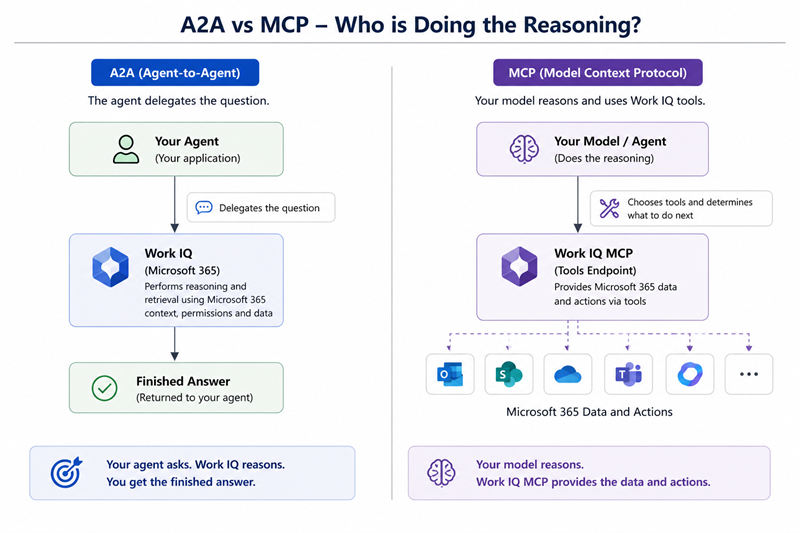
I initially kept comparing them as competing integration options. They are more useful together.
An MCP-based agent can do fine-grained work itself, then call the ask tool for the moments when handing a hard synthesis to Microsoft 365 Copilot is the better call.
That gives the orchestrator a choice rather than forcing every task through one pattern.
Before configuring anything: there are several Work IQ MCP surfaces
The name “Work IQ MCP” currently appears in more than one product surface. They are related, but they are not interchangeable.
| Surface | What it is | Connection | Status in July 2026 |
|---|---|---|---|
| Remote Work IQ MCP server | The single endpoint and ten generic tools used in this article | https://workiq.svc.cloud.microsoft/mcp | GA Work IQ API surface |
| Local Work IQ MCP server | The workiq CLI running a local stdio server for IDEs and coding assistants | workiq mcp | GA |
| Agent 365 Work IQ MCP servers | Workload-oriented catalogue servers for products such as mail, calendar, Teams and SharePoint | Managed through Agent 365/Copilot connections | Preview |
Correction: the local CLI reached general availability with the rest of Work IQ on June 16, 2026, weeks before I first published this piece, so “public preview” in that row was already wrong. Fixed above.
This distinction cost me more time than the code.
The remote server is the pro-code developer surface. It uses one endpoint and the generic tool model described below.
The local server is designed for development tools. Install the CLI and let an MCP-capable IDE or coding assistant start it over stdio.
The Agent 365 catalogue is the managed product route. Copilot Studio and Foundry can offer workload-specific Work IQ connections with tenant governance and end-user connection handling.
Same family. Different operational model.
For the console sample, I use the remote server because I want to see the protocol and control the token flow myself.
The entire remote tool surface
The remote server registers ten tools.
| Category | Tools | Purpose |
|---|---|---|
| Entity | fetch, create_entity, update_entity, delete_entity, do_action, call_function | Read and change Microsoft 365 resources |
| Copilot | ask, list_agents | Delegate natural-language reasoning and discover agents |
| Schema | get_schema, search_paths | Discover paths and retrieve schemas at runtime |
One update since I tested this: Microsoft’s tool reference now lists an eleventh tool, fetch_blob, for reading binary content such as files and images. It showed up after this article’s last update. Check the tool reference for the current count before you hardcode it anywhere; the design argument below holds either way.
A small naming detail matters when you move from slides to code. Product presentations sometimes use names such as getSchema, but the registered MCP tool names are snake case: get_schema, search_paths and create_entity.
Use the names returned by tools/list and the current tool reference.
Why ten tools is a sensible constraint
After using the server, three design choices stood out.
1. The verbs stay fixed; the paths grow
A traditional MCP server often maps one function to one operation:
- get messages
- create event
- update file
- send mail
- search users
That is easy to understand at small scale. Microsoft 365 is not small scale.
Work IQ keeps the operation generic:
fetch /me/messages
create_entity /me/events
do_action /me/sendMail
fetch /me/chats/{id}/messages
call_function /search/query
New workloads add paths rather than more top-level tools.
The model still has to understand the operation, but it does not need hundreds of tool definitions occupying its context window.
2. The agent can inspect the schema when it needs it
I initially treated search_paths and get_schema as convenience functions.
They are more important than that.
The agent does not need a permanent copy of every Microsoft 365 schema in its prompt or codebase. It can search for a path and request the schema for the operation it is about to perform.
That lets the surface evolve without requiring every client to ship a new giant tool catalogue.
3. Policy is enforced behind the generic surface
A small tool list must not become a broad security bypass.
Work IQ applies delegated authentication and tenant policy behind the endpoint. The resource path, operation, signed-in user and configured policy remain part of the decision.
That is essential to the design. Generic tools are only useful in an enterprise if the server remains specific about what each caller may do.
The paths themselves should look familiar to Microsoft Graph developers. Many map to Graph v1.0 resources, and existing Graph knowledge transfers well.
The difference is the agent-facing interface and the policy layer around it.
The discovery loop
The most important pattern in this article is:
discover → inspect → act
Assume the agent needs to create a calendar event but has not been given the event schema.
Discover a relevant path. The agent calls search_paths with a filter parameter. The result describes matching paths and the operations available on them.
{
  "method": "tools/call",
  "params": { "name": "search_paths", "arguments": { "filter": "events" } }
}Inspect the schema for the operation. The agent calls get_schema with the path and operationType. The server returns a schema the agent can use to construct a valid request. The tool can also return TypeScript definitions, which are compact and easy for many models to interpret.
{
  "method": "tools/call",
  "params": {
    "name": "get_schema",
    "arguments": { "path": "/me/events", "operationType": "create" }
  }
}At the time of writing, schema discovery covers Microsoft Graph v1.0. The interface leaves room for more backends later without changing the ten-tool model.
Perform the operation. The agent calls create_entity with the parentUrl and jsonBody. No generated SDK type was required. No OpenAPI document had to be packaged into the application. The agent discovered what it needed at runtime.
I would not necessarily make every production call rediscover the same stable schema. Caching can still be useful. The important part is that discovery is available when the agent or platform needs it.
{
  "method": "tools/call",
  "params": {
    "name": "create_entity",
    "arguments": {
      "parentUrl": "/me/events",
      "jsonBody": "{ \"subject\": \"Contoso migration review\" }"
    }
  }
}Details that are easy to get wrong
These are small constraints, but they are exactly the kind that make a demo fail late in the evening.
jsonBody is a string. The jsonBody argument contains serialised JSON. It is not a nested object.
Correct:
"jsonBody": "{ \"subject\": \"Hello\" }"In C#, build an object and serialise it before passing the argument. Do not hand-escape large payloads.
Collection sizes are policy-controlled. The service can inject a default $top when the caller omits one and enforce upper limits. Some workloads have stricter limits than others.
Design the client for bounded reads rather than assuming one call returns an entire mailbox or chat history.
Do not design offset paging around $skip. The Work IQ MCP policy blocks some paging patterns, including $skip and $skiptoken, in the documented configuration. Follow the supported next-link behaviour returned by the service.
Paths are allowlisted
Paths are allowlisted. Common user and site paths are available, while sensitive administrative areas can be blocked. Tenant policy can further narrow the surface.
The fact that a path exists in Graph does not guarantee that Work IQ MCP allows it. This is where I actually got stuck building the sample: get_schema(“/me/messages”, operationType: “create”) came back with “Access denied for path: /me/messages”, and create_entity on the same path failed with “Path is not in the policy allowlist.” Nothing was wrong in Program.cs. My delegated token and scopes were fine. The block was a tenant policy switch.
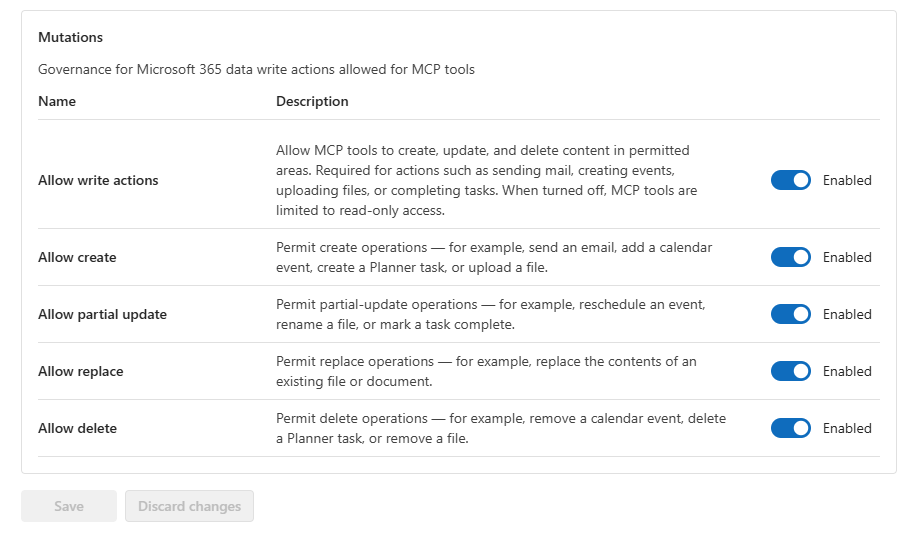
That switch lives on the same Policies tab, under Mutations. Five toggles on that tab govern which Microsoft 365 write actions MCP tools are allowed to perform:
- Allow write actions is the master switch. Off, and every MCP tool call in the tenant is read-only; the other four toggles don’t matter until this one is on.
- Allow create governs create_entity: sending mail, creating events, uploading files, adding tasks.
- Allow partial update governs update_entity: rescheduling an event, renaming a file, marking a task complete.
- Allow replace governs replacing the full contents of an existing file or document.
- Allow delete governs delete_entity: removing an event, task or file.
Retries belong to the client. The server can return downstream status codes and retry guidance. The sample keeps error handling visible, but a production client should implement bounded retries, respect Retry-After and avoid repeating non-idempotent writes blindly.
Authentication stays delegated
The remote server uses Microsoft Entra ID. MCP clients can discover its OAuth configuration from the standard protected-resource metadata endpoint.
In the C# sample, authentication remains explicit: acquire a delegated token for the Work IQ resource, add it as a bearer token, and create the MCP transport.
The permission documented for the Work IQ APIs is WorkIQAgent.Ask, with admin consent. Microsoft also describes the MCP policy model in terms of broader capability permissions. Because that documentation was still evolving, I would check the current permissions reference before diagnosing a consent failure from an old article.
One more tenant detail is worth knowing: the Work IQ service principal is normally provisioned when the service is first used. If an administrator tries to configure MCP policy before that has happened, the policy setup may fail until the service principal is created. That is not an MCP programming problem, although it can look like one.
Build a console client that discovers the server
The demo has a simple story:
- connect to the remote MCP endpoint;
- list the available tools;
- discover a message path;
- inspect its schema;
- read a small set of messages;
- ask Copilot to reason over work context;
- create an Outlook draft.
Creating a draft rather than sending keeps a real write operation in the demo without hiding a consequential action behind it.
dotnet new console -n Part3.WorkIQMcp
cd Part3.WorkIQMcp
dotnet add package ModelContextProtocol
dotnet add package Microsoft.Identity.ClientThe versions I used were:
<Project Sdk="Microsoft.NET.Sdk">

  <PropertyGroup>
    <OutputType>Exe</OutputType>
    <TargetFramework>net10.0</TargetFramework>
    <ImplicitUsings>enable</ImplicitUsings>
    <Nullable>enable</Nullable>
  </PropertyGroup>

  <ItemGroup>
    <PackageReference Include="ModelContextProtocol" Version="1.4.0" />
    <PackageReference Include="Microsoft.Identity.Client" Version="4.84.2" />
  </ItemGroup>

</Project>Connect to the remote server
Auth is identical to Parts 1 and 2. The only new piece is handing the token to the MCP transport instead of a raw HttpClient.
using Microsoft.Identity.Client;
using ModelContextProtocol.Client;

const string ClientId = "<your-app-client-id>";
const string TenantId = "<your-tenant-id>";
const string Scope    = "api://workiq.svc.cloud.microsoft/.default";
const string Endpoint = "https://workiq.svc.cloud.microsoft/mcp";

var app = PublicClientApplicationBuilder
    .Create(ClientId)
    .WithAuthority($"https://login.microsoftonline.com/{TenantId}")
    .WithDefaultRedirectUri()
    .Build();

var auth = await app.AcquireTokenInteractive([Scope]).ExecuteAsync();

var transport = new HttpClientTransport(new HttpClientTransportOptions
{
    Endpoint = new Uri(Endpoint),
    AdditionalHeaders = new Dictionary<string, string>
    {
        ["Authorization"] = $"Bearer {auth.AccessToken}"
    }
});

await using var mcp = await McpClient.CreateAsync(transport);List the tools
This is a useful first diagnostic. It proves the connection and shows the exact tool names and descriptions registered by the current server.
Console.WriteLine("== The ten tools ==");
foreach (var tool in await mcp.ListToolsAsync())
Console.WriteLine($" {tool.Name,-16} {tool.Description}");It is also a good demo moment: the Microsoft 365 capability surface fits on one screen:
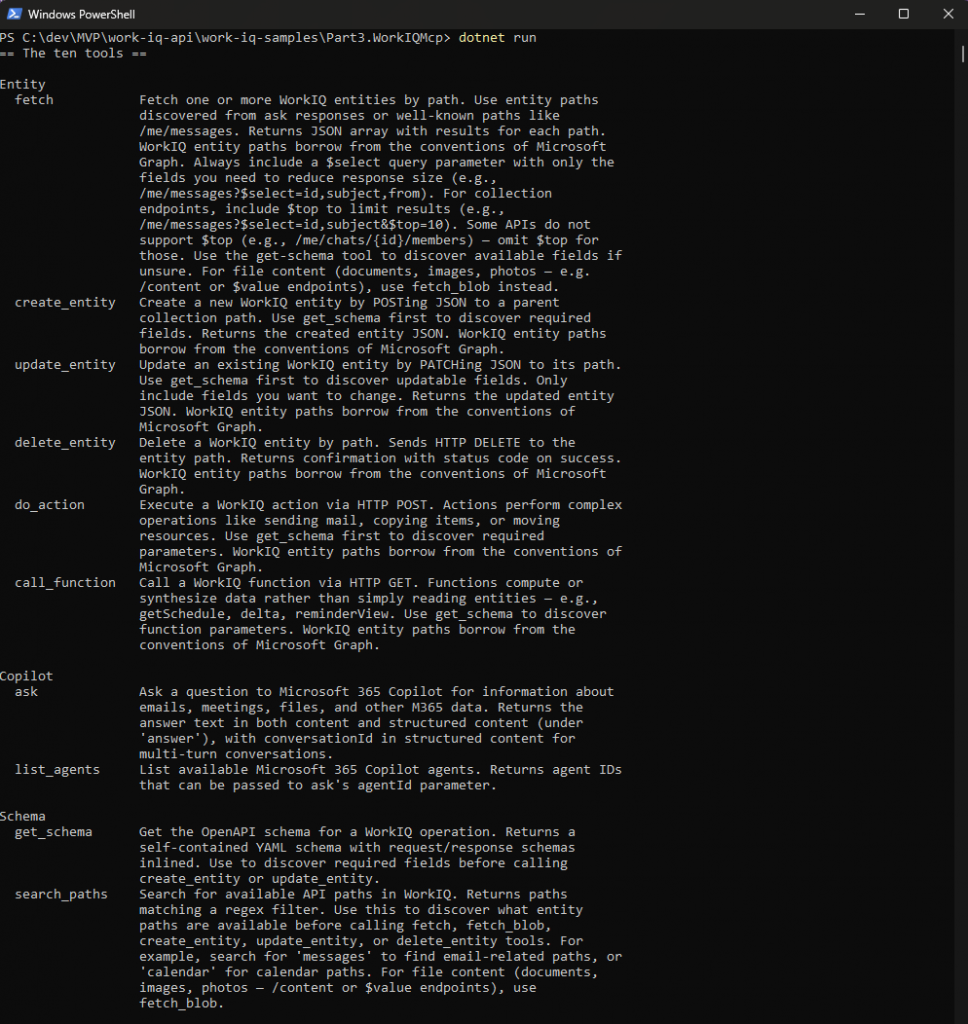
Discover a path and inspect its schema
I use TypeScript output because it is compact and model-friendly. JSON Schema is equally valid if it suits your orchestrator better.
var paths = await mcp.CallToolAsync("search_paths",
    new Dictionary<string, object?> { ["filter"] = "messages" });
PrintResult("search_paths(\"messages\")", paths);

var schema = await mcp.CallToolAsync("get_schema",
    new Dictionary<string, object?>
    {
        ["path"] = "/me/messages",
        ["operationType"] = "create",
        ["format"] = "typescript"   // TS is compact and model-friendly
    });
PrintResult("get_schema(/me/messages, create)", schema);Reading, reasoning and creating a draft.
// Read: newest messages (policy injects $top=25 if you don't say otherwise)
var inbox = await mcp.CallToolAsync("fetch",
    new Dictionary<string, object?>
    {
        ["entityUrls"] = new[] { "/me/messages?$top=5&$select=subject,from,receivedDateTime" }
    });
PrintResult("fetch(/me/messages)", inbox);

// Reason: hand the hard part to Copilot — this is A2A's superpower as a tool call
var answer = await mcp.CallToolAsync("ask",
    new Dictionary<string, object?>
    {
        ["question"] = "Which of my unread emails from this week most needs a reply, and why?",
        ["timeZone"] = TimeZoneInfo.Local.Id
    });
PrintResult("ask(...)", answer);

// Write: draft the reply as a real artifact in Outlook.
// jsonBody is a JSON *string* — serialize, don't pass an object.
var draftJson = System.Text.Json.JsonSerializer.Serialize(new
{
    subject = "Follow-up: Contoso migration",
    body = new { contentType = "text", content = "Drafted by my Work IQ MCP agent — review before sending." }
});

var draft = await mcp.CallToolAsync("create_entity",
    new Dictionary<string, object?>
    {
        ["parentUrl"] = "/me/messages",
        ["jsonBody"]  = draftJson
    });
PrintResult("create_entity(/me/messages)", draft);The three calls demonstrate the two modes working together. fetch and create_entity are fine-grained tools controlled by my application. ask delegates a natural-language reasoning task to Copilot.
Creating “/me/messages” produces a draft. Sending it is a separate action. I like that separation because it gives the orchestrator a natural approval boundary: drafting can be automatic; sending can require a human.
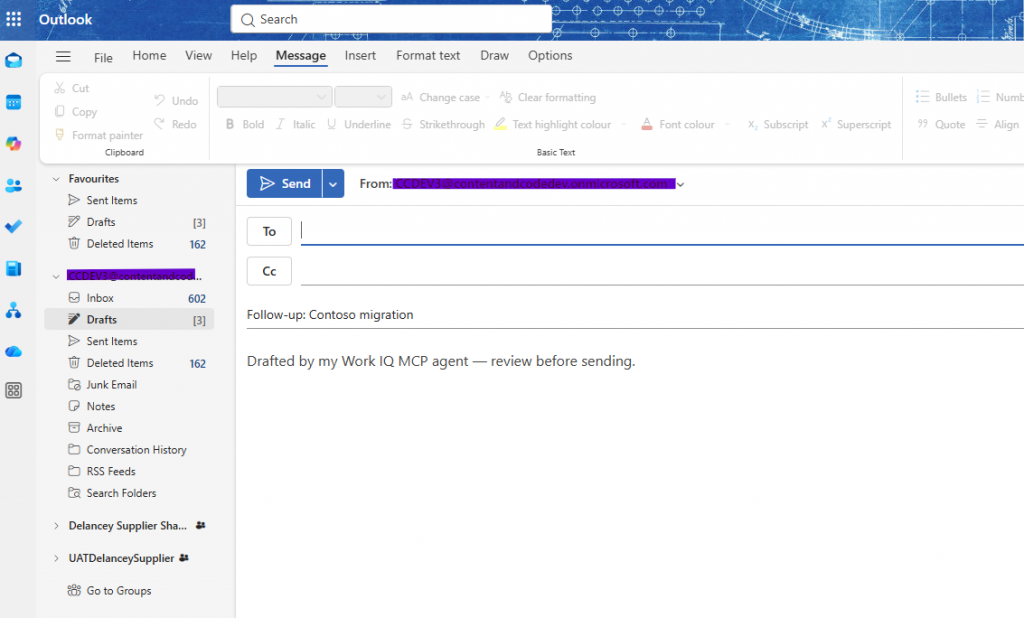
What surprised me while building it
Existing Graph knowledge got more useful
I expected Work IQ MCP to hide Graph completely.
Instead, resource paths and response concepts remain familiar. The new part is how an agent discovers and invokes them, plus the policy boundary enforced by Work IQ.
The schema tools make the surface usable
Without runtime discovery, ten generic verbs would be too vague.
search_paths and get_schema are what turn the small tool surface into a usable platform.
Tool design affects model quality
Every tool definition consumes attention and context. Reducing hundreds of narrow functions to a stable set of verbs gives the model less surface area to misunderstand.
Good instructions and approval rules still matter. This just gives them a cleaner foundation to work from.
The product naming needs careful reading
The remote server, local CLI and Agent 365 catalogue all use Work IQ and MCP language.
Before debugging authentication or licensing, make sure the documentation describes the surface you are actually using.
Add Work IQ to Copilot Studio
Copilot Studio exposes the managed Agent 365 catalogue route rather than asking every maker to implement the raw token flow above.
As of July 2026, that route was documented as preview and had its own licensing requirements. Check the current product page before using these exact steps.
The basic flow is:
- open the agent in Copilot Studio;
- go to Tools and choose Add a tool;
- select Model Context Protocol;
- search for the required Work IQ workload, such as mail or calendar;
- create or select a user connection;
- add and configure the tool.
The advantage goes beyond fewer lines of code: Microsoft manages the connection, consent and tenant-governance experience for you.
That is usually the route I would prefer for a user-facing low-code agent.
Add Work IQ to a Foundry agent
Foundry offers two broad approaches.
Use the managed catalogue
The managed Work IQ tools can be added through the Foundry tool catalogue. This is the simpler option when the agent acts for an interactive user and the platform should manage the connection.
The exact catalogue names and portal layout are preview details, so I would follow the current Foundry documentation rather than preserve screenshots indefinitely.
Connect a remote MCP server in pro code
Foundry also supports remote MCP tools. The conceptual agent definition looks like this:
using Azure.AI.Projects;
using Azure.AI.Extensions.OpenAI;
using Azure.Identity;

AIProjectClient projectClient = new(
    endpoint: new Uri("https://<resource>.ai.azure.com/api/projects/<project>"),
    tokenProvider: new DefaultAzureCredential());

DeclarativeAgentDefinition agentDefinition = new(model: "gpt-5-mini")
{
    Instructions = "You are an assistant with tool access to the user's Microsoft 365 data. " +
                   "Discover paths with search_paths and schemas with get_schema before acting.",
    Tools = { ResponseTool.CreateMcpTool(
        serverLabel: "workiq",
        serverUri: new Uri("https://workiq.svc.cloud.microsoft/mcp"),
        // Writes go through Work IQ; make a human approve each call.
        toolCallApprovalPolicy: new McpToolCallApprovalPolicy(
            GlobalMcpToolCallApprovalPolicy.AlwaysRequireApproval)) }
};

AgentVersion agentVersion = projectClient.AgentAdministrationClient.CreateAgentVersion(
    agentName: "workiq-tools-agent",
options: new(agentDefinition));The approval policy deserves the same attention as the rest of the definition. A model with write access to mail, calendar and files needs an explicit decision about which calls may proceed automatically.
Authentication is the more difficult part.
Work IQ uses delegated user context. A Foundry-hosted agent runs in a service environment. If you connect directly to the remote endpoint, you need a safe way to carry the user’s Work IQ token into the tool call, commonly through an on-behalf-of design.
That is exactly the plumbing the managed catalogue route removes.
My current rule is:
- use the managed catalogue for interactive, user-facing agents unless I need lower-level control;
- use the raw remote endpoint when I own the complete token flow and approval experience.
Which Work IQ MCP route would I choose?
| Scenario | My starting point |
|---|---|
| Custom backend or orchestrator | Remote ten-tool MCP server |
| Copilot Studio agent | Managed Work IQ/Agent 365 catalogue tool |
| Foundry agent acting for users | Managed catalogue first |
| IDE or coding assistant | Local workiq CLI server |
| Backend with a controlled delegated-token flow | Remote MCP endpoint |
This is not a permanent rule. The managed surfaces are still evolving.
It is simply the least surprising choice based on what each product owns today.
The architecture is moving up a level
After three parts, here’s what changed for me: the architecture moved up a level.
A year ago, much of our AI engineering discussion centred on connectors, retrieval, state and permissions. Those are necessary concerns, but they are rarely the feature a client actually wants.
With A2A, Work IQ can take responsibility for a grounded work question.
With MCP, my own agent can keep control of the workflow while using a compact, discoverable Microsoft 365 capability surface.
That lets us spend more time on decisions such as:
- what the agent should do;
- what it should explain;
- which actions require approval;
- what belongs in short-term context;
- what should persist;
- how users can verify and reverse its work.
Those are still difficult problems.
They are also much closer to the product we are trying to build.
Code for this article is in Part3.WorkIQMcp.
